![Image 11-6-19 at 1.14 PM.jpg]](https://help.aupairclasses.org/hs-fs/hubfs/Image%2011-6-19%20at%201.14%20PM.jpg?width=40&height=40&name=Image%2011-6-19%20at%201.14%20PM.jpg)
Updating Course Names and Colors
You will see some variation of the below image when you initially sign-in to Canvas. You should have the option for all of your available courses.
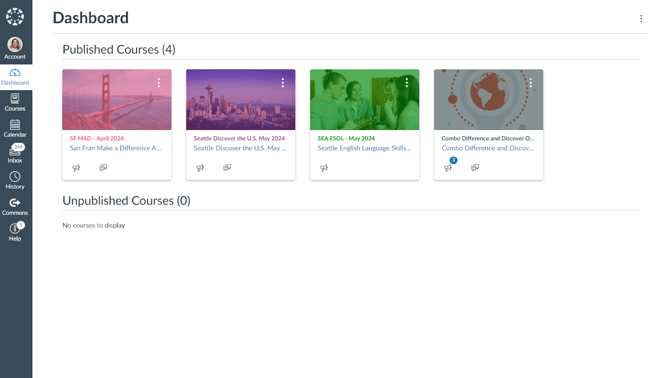
You can change the names and colors of each tile to whatever you would like by clicking on the three dots in the top right corner.

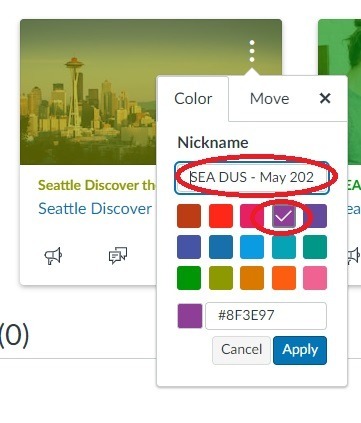

Removing tiles
When a course is over, you can remove this from your dashboard by clicking on the three dots in the top right corner. select the ‘Move’ tab and select ‘Unfavorite.’
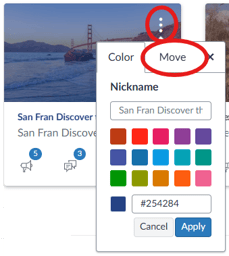
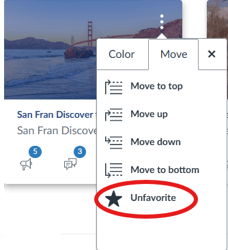
All of these changes will only update in your Canvas and will not change the course for others. Some of these options will not be available until you have multiple courses.